Can a PS4 Controller Work on PC Complete Connection Guide
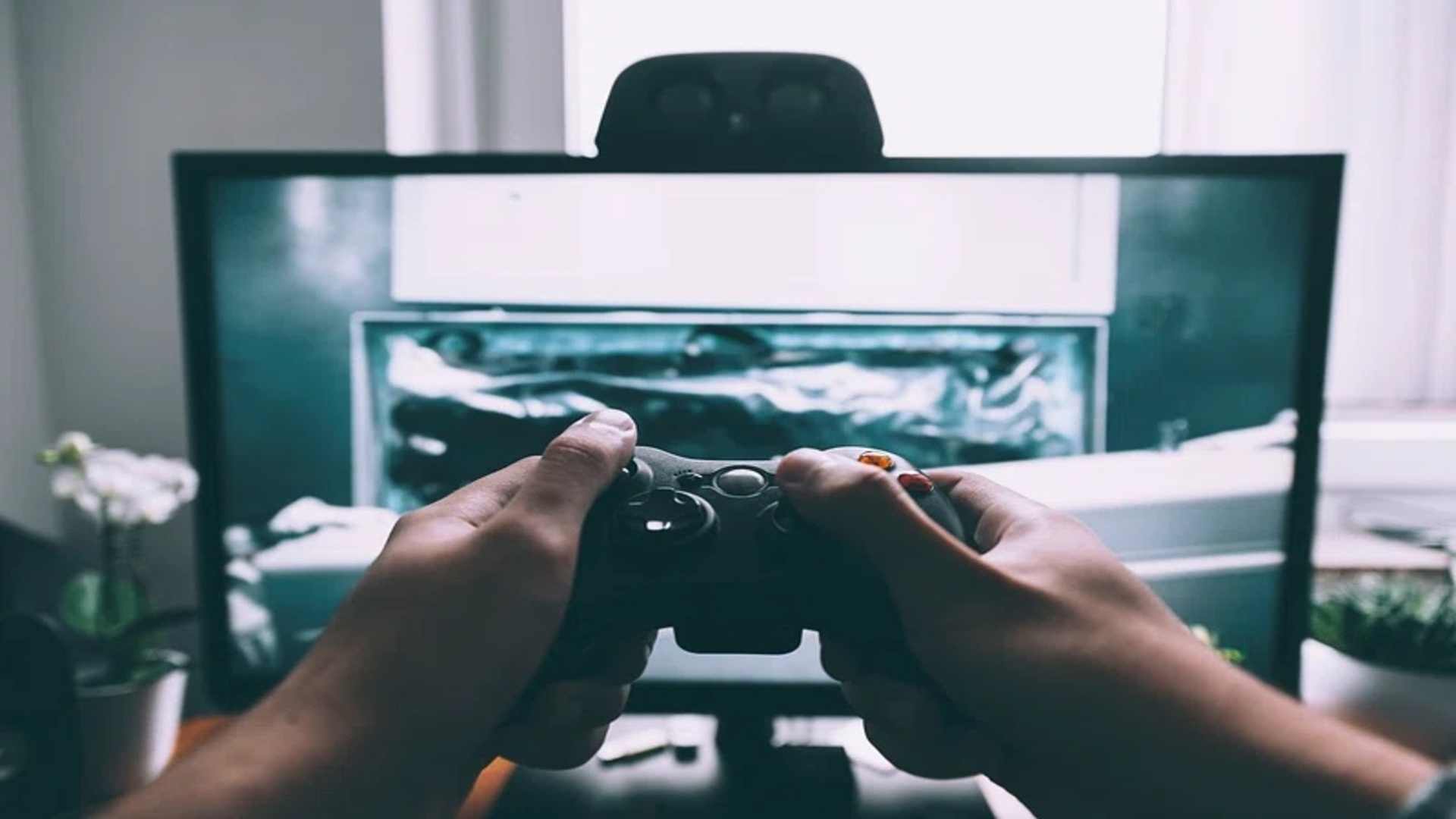
Connecting your favorite console peripherals to a desktop computer can completely transform your desktop gaming experience. Many players prefer the ergonomic design and familiar layout of console hardware when diving into intense indie games or complex action titles on their computers. Understanding how a standard PS4 controller can work on a PC ensures you can easily bridge the gap between platforms without buying expensive new gear.
Establishing a Reliable Wired USB Connection
The most straightforward method to establish a connection requires a reliable micro-USB data transfer cable. Simply plug the smaller end of the cable into your controller and connect the other end directly to a spare USB port on your computer. Windows will automatically detect the device within a few seconds and configure the baseline inputs for immediate use.
Using a physical wired connection provides the lowest possible input lag, which is essential for competitive gaming. It also ensures your controller continuously charges during your gameplay session, removing any worries about sudden battery failure. This reliable plug-and-play setup remains the top choice for straightforward desktop gaming scenarios.
Setting Up Wireless Bluetooth Pairing
If you prefer complete freedom of movement, connecting your device wirelessly via Bluetooth is an excellent alternative strategy. To begin, ensure your computer has Bluetooth enabled within the system settings before putting your hardware into pairing mode. You can initiate pairing mode by holding down the Share button and the PlayStation button simultaneously until the light bar flashes rapidly.
Once the light begins blinking, open your computer's Bluetooth menu and select the wireless controller from the available device list. The operating system will complete the secure handshake process automatically, establishing a stable wireless connection. This wireless approach gives you excellent mobility while maintaining responsive control over your digital library.
Configuring Input Settings and Compatibility Software
While many modern titles support console hardware natively, some classic games might expect an alternative button layout configuration to function properly. Popular gaming platforms like Steam offer built-in controller configuration tools that map your inputs seamlessly behind the scenes. Enabling these configuration options ensures that your system recognizes the peripheral across almost any title you launch.
For games outside of major launchers that require specific XInput emulation, external software utilities like DS4Windows can provide necessary driver support. These lightweight tools trick your computer into treating your peripheral as a standard Xbox controller to maximize compatibility. Utilizing these configuration steps ensures a smooth experience across both modern and legacy PC releases.